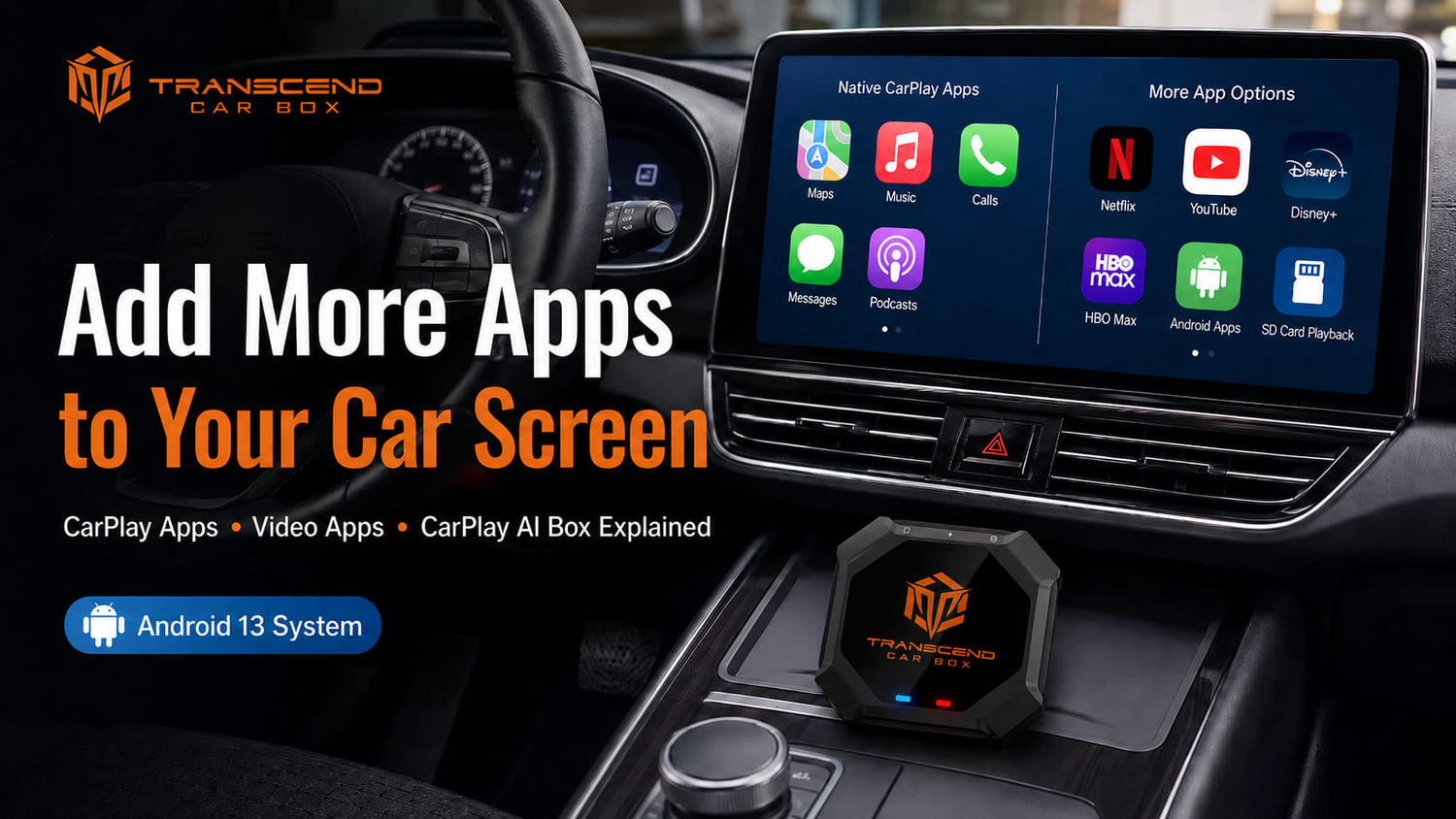
Many drivers want to add more apps to Apple CarPlay.
Some want navigation or music apps. Some want messaging apps. Others want to know if they can add Netflix, YouTube, Disney+, HBO Max, or other video apps to the car screen.
As a CarPlay user, the question usually sounds simple:
How do I download apps on Apple CarPlay?
The real answer is a little different.
Apple CarPlay does not work like a separate App Store on your dashboard. You do not download apps directly onto the car screen. Instead, CarPlay shows compatible apps from your iPhone. Apple’s own support guidance says compatible apps can appear automatically on CarPlay Home, and users can add, remove, or reorder supported apps from the CarPlay settings on the iPhone.
That is why some apps appear on CarPlay, while others do not.
In this guide, I will explain how CarPlay apps actually work, how to add or organize supported CarPlay apps, why Netflix and YouTube do not normally appear as native CarPlay apps, and when a CarPlay AI Box such as Transcend Car Box may be a better solution for compatible car screens.
Video apps should only be used while parked or by passengers where legally allowed. Drivers should never watch videos while driving.
Quick Answer: Can You Download Apps on Apple CarPlay?
No, you cannot download apps directly onto Apple CarPlay like you download apps onto an iPhone.
You install apps on your iPhone. Then, only apps that support CarPlay can appear on the CarPlay screen.
That means installing Netflix, YouTube, Disney+, or HBO Max on your iPhone does not automatically make those apps appear on CarPlay.
For native CarPlay, supported apps are usually driving-friendly apps, such as navigation, music, podcasts, calls, messages, parking, EV charging, fueling, quick food ordering, and similar in-car app categories. Apple’s developer documentation also describes CarPlay app integration around categories such as audio, communication, navigation, parking, EV charging, and food ordering.
So the simple rule is:
CarPlay does not show every app on your iPhone. It only shows apps that are designed to support CarPlay.
If you want Netflix, YouTube, Disney+, HBO Max, Android apps, or offline video playback on a compatible car screen, native CarPlay is usually not enough. A CarPlay AI Box may provide another option.
How Apple CarPlay Apps Actually Work
Apple CarPlay is not a standalone tablet built into your dashboard.
It is a car-friendly interface powered by your iPhone.

When you connect your iPhone to a compatible car screen, CarPlay displays selected apps in a simplified layout that is easier to use in the vehicle. The goal is not to mirror your entire iPhone. The goal is to provide a safer, more focused in-car experience.
That is why CarPlay usually focuses on apps such as:
Maps
Music
Podcasts
Messages
Phone calls
Audiobooks
Navigation apps
Parking apps
EV charging apps
Quick food ordering apps
Vehicle-related apps
Some apps are already installed on your iPhone but still do not appear on CarPlay. That does not always mean something is broken.
It usually means the app does not support CarPlay.
For example, an app may work perfectly on your iPhone, but if the app developer has not built a CarPlay-compatible experience, it will not show up on your car screen as a native CarPlay app.
This is one of the most common misunderstandings about Apple CarPlay.
CarPlay does not ask: “Is this app installed on your iPhone?”
It asks: “Is this app allowed and designed to work in CarPlay?”
How to Add, Remove, or Reorder Apps on Apple CarPlay
You can organize supported CarPlay apps from your iPhone.
Here is the usual path:

Open Settings on your iPhone
Tap General
Tap CarPlay
Select your vehicle
Tap Customize
Add, remove, or reorder supported apps
Reconnect your iPhone to CarPlay
From this menu, you can usually do three things.
You can add supported apps that are available for CarPlay.
You can remove supported apps from the CarPlay display.
You can drag apps to change their order on the CarPlay screen.
This is useful if you want Maps, Spotify, Messages, Podcasts, or your favorite audio app to appear on the first CarPlay page.
But there is an important limitation:
This menu does not make unsupported apps appear.
If Netflix, YouTube, Disney+, or another app does not support native CarPlay video use, it will not appear just because you installed it on your iPhone.
Apple’s support instructions for arranging CarPlay apps are about adding, removing, and reordering supported apps from the iPhone CarPlay settings. They are not about downloading any app directly onto the car screen.
Why Some Apps Do Not Show Up on CarPlay
If an app does not show up on Apple CarPlay, there are several possible reasons.
The most common reason is simple:
The app does not support CarPlay.
Other possible reasons include:
The app is not updated
Your iPhone needs to reconnect to the vehicle
CarPlay restrictions are enabled
The app is hidden on another CarPlay page
The vehicle or head unit has compatibility issues
The app only supports iPhone use, not CarPlay use
A good troubleshooting flow is:
First, check whether the app supports CarPlay.
Second, update the app and iOS.
Third, reconnect your iPhone to the vehicle.
Fourth, go to Settings > General > CarPlay > your vehicle > Customize.
Fifth, check whether the app appears in the CarPlay app list.
If the app still does not appear, it may not support CarPlay.
For example, many video streaming apps are designed for phones, tablets, computers, TVs, and streaming devices, but not for normal native CarPlay use.
That is where users often start looking for other solutions.
Can You Add Netflix to Apple CarPlay?
Not normally.
Netflix does not usually appear as a native Apple CarPlay app.
Even if Netflix is installed on your iPhone, it usually will not show up on the CarPlay screen like Apple Maps, Spotify, or Messages.
That is because native CarPlay is mainly built around driving-friendly app categories. Full video streaming is treated differently from audio, navigation, calls, and messages.
So if your goal is only to organize supported CarPlay apps, the iPhone CarPlay Customize menu is enough.
But if your goal is to watch Netflix on a compatible car screen while parked or for passenger entertainment, native CarPlay usually will not solve that problem.
For Netflix specifically, you should use a dedicated guide that explains the safe viewing options, compatibility requirements, and CarPlay AI Box approach.
Can You Add YouTube to Apple CarPlay?
Not normally.
YouTube video playback does not usually appear as a native Apple CarPlay video app.
This is also where many users get confused between YouTube and YouTube Music.
YouTube Music may support audio-focused use in the car, depending on app support and region. But watching YouTube videos on the CarPlay screen is a different use case.
Native CarPlay is not designed to turn your car screen into a full YouTube video player in most vehicles.
So if you install YouTube on your iPhone and expect it to appear on your CarPlay screen, it probably will not.
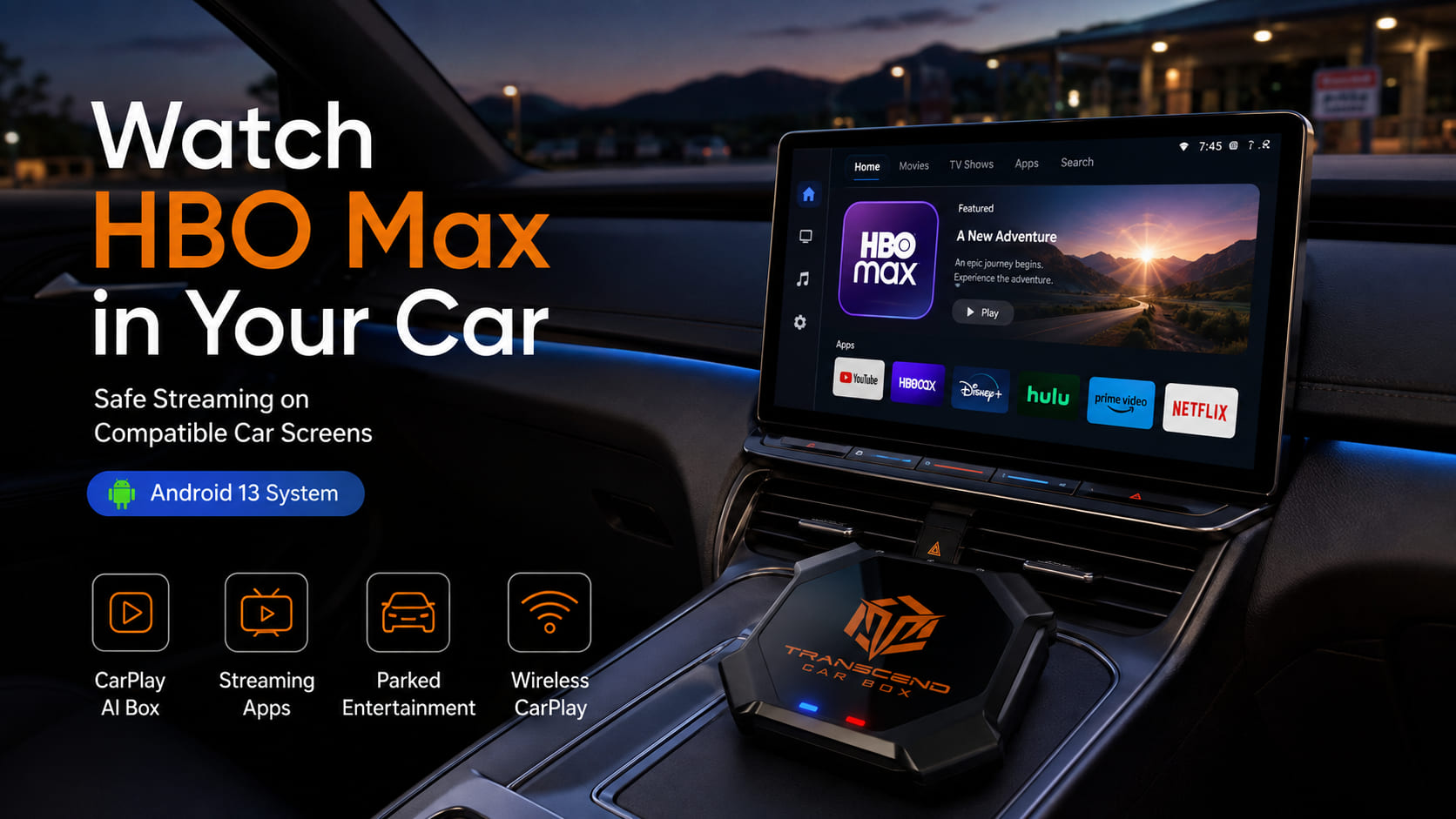
For users who want YouTube videos on a compatible car display during parked breaks or passenger use, a CarPlay AI Box may be a better option.
Click here for more infor to watch Youtube pon Apple CarPlay
Can You Add Disney+, HBO Max, Hulu, or Prime Video to CarPlay?
In most cases, no.
Disney+, HBO Max, Hulu, Prime Video, and similar streaming apps do not normally appear as native Apple CarPlay video apps.
These apps are usually made for phones, tablets, computers, TVs, streaming sticks, game consoles, and other entertainment devices.
Native Apple CarPlay is different.
It is designed for a simplified in-car experience, not a full video entertainment system in most vehicles.
That does not mean there is no way to enjoy streaming content in the car. It means native CarPlay is usually not the right method.
For video apps, users usually consider:
a phone
a tablet
a rear seat entertainment screen
a supported parked video system
a compatible CarPlay AI Box
What About CarPlay Video Apps?
This is an important topic because CarPlay is changing over time.
Apple has introduced more vehicle-related and parked media capabilities, including AirPlay video in the car for supported vehicles when people are not driving. Apple’s developer page describes AirPlay video in the car as a way to watch video from iPhone on a CarPlay display when the vehicle is not being driven.
However, this does not mean every current CarPlay screen can download Netflix, YouTube, Disney+, or HBO Max like a normal iPhone app.
For most current users, native CarPlay should still be treated as a driving-focused interface.
So the practical answer remains:
If you want to add and organize supported CarPlay apps, use the iPhone CarPlay settings.
If you want video apps and Android-style app access on a compatible car screen, you may need another setup.
Best Ways to Use More Apps on Your Car Screen
There are two common ways to use more apps in the car.
Option 1: Use Native CarPlay Supported Apps
This is the best choice for normal driving use.
Native CarPlay supported apps are usually reliable, simple, and designed for the car environment.
This is ideal for:
navigation
music
podcasts
calls
messages
audiobooks
parking
EV charging
quick food ordering
The advantage is that it is clean and officially supported.
The limitation is that it does not usually give you Netflix, YouTube video playback, Disney+, HBO Max, or a full Android app interface.
Option 2: Use a CarPlay AI Box

A CarPlay AI Box is designed for users who want more than basic CarPlay.
It does not “download Netflix into native CarPlay.”
Instead, it adds a separate smart interface to a compatible car screen.
With the right setup, a CarPlay AI Box can provide access to Android-based apps, streaming apps, offline media, wireless CarPlay, and wireless Android Auto.
This is the option that fits users who want:
Netflix
YouTube
Disney+
HBO Max
Android apps
SD card offline playback
wireless CarPlay
wireless Android Auto
a larger shared car screen experience
For this type of use, compatibility matters.
Your car must support wired CarPlay or wired Android Auto through a USB data connection.
How Transcend Car Box Adds More App Options
Transcend Car Box does not force unsupported apps into native Apple CarPlay.
That is not how CarPlay works.
Instead, Transcend Car Box adds a separate Android 13-based interface to a compatible car screen.
When connected to a compatible vehicle screen that supports wired CarPlay or wired Android Auto through USB, Transcend Car Box can launch its own smart interface on the display.
From there, users may access Android-based apps, streaming apps, offline media, wireless CarPlay, wireless Android Auto, and other features.
This is useful because it separates two different needs.
Native CarPlay is great for driving-friendly apps.
Transcend Car Box is for users who want a more flexible smart screen experience while parked or for passenger entertainment on compatible screens.
Key features include:
Android 13 system
Qualcomm 665 processor
8GB RAM
128GB storage
Wireless CarPlay
Wireless Android Auto
Android apps(Youtube, Netflix,Disney+ and more)
SD card offline video playback
Bluetooth accessories
Plug-and-play USB connection
For example, during a road trip break, school pickup wait, camping stop, lunch break, or parking lot wait, passengers may want to watch YouTube, Netflix, Disney+, or HBO Max on a larger shared screen instead of a phone.
That is the kind of situation where a CarPlay AI Box can make sense.
Compatibility Checklist Before Buying
Before buying a CarPlay AI Box, check your car first.
Transcend Car Box requires a compatible vehicle screen with wired CarPlay or wired Android Auto through a USB data connection.

Your car may be compatible if:
Wired CarPlay works through USB
Wired Android Auto works through USB
The USB port supports data transfer
The car screen launches CarPlay or Android Auto when connected by cable
Your car may not be compatible if it only has:
Bluetooth audio
Charge-only USB
USB music playback only
No wired CarPlay
No wired Android Auto
An aftermarket head unit without wired CarPlay or wired Android Auto support
A simple test can help.
Connect your iPhone to the car with a USB data cable. If wired CarPlay launches on the screen, your vehicle may be compatible.
Then test an Android phone with a USB data cable. If wired Android Auto launches on the screen, your vehicle may also be compatible.
Bluetooth connection alone is not enough.
A USB port that only charges your phone is not enough.
The USB port must support data transfer and must be able to launch wired CarPlay or wired Android Auto.
If you want to get more details about the CarPlay box compatibility, read the compatibility guide:
FAQ
Can you download apps directly on Apple CarPlay?
No. You install apps on your iPhone, and only apps that support CarPlay can appear on the CarPlay screen.Apple CarPlay is not a separate App Store on your dashboard.
How do I add apps to Apple CarPlay?
On your iPhone, go to Settings > General > CarPlay > select your vehicle > Customize.
From there, you can add, remove, or reorder supported CarPlay apps.
Why are my apps not showing on CarPlay?
Some apps do not show because they do not support CarPlay.
You may also need to update the app, reconnect your iPhone, check restrictions, or reorder your CarPlay apps in the Customize menu.
Can I add Netflix to Apple CarPlay?
Not normally.
Netflix does not usually appear as a native Apple CarPlay app. To watch Netflix on a compatible car screen, users usually need another setup, such jailbreak your iphone, or a compatible CarPlay AI Box.
Can I add YouTube to Apple CarPlay?
Not normally.
YouTube does not usually appear as a native CarPlay video app. YouTube Music and YouTube video playback are different use cases.But with a CarPlay box, you can use Youtube directly on CarPlay.
Can a CarPlay AI Box add Netflix and YouTube?
A CarPlay AI Box can provide Android-based app access on compatible car screens.
With a compatible setup, users may access streaming apps, such as Youtube, Netflix, Disney+ and more.
Does Transcend Car Box work with every car?
No.
Transcend Car Box requires a compatible car screen with wired CarPlay or wired Android Auto through a USB data connection.
Bluetooth alone is not enough.
Can I watch videos while driving?
No.
Although Transcend Car Box support watching videos while driving, but Drivers should never watch videos while driving.
Video apps should only be used while parked or by passengers where legally allowed.
Final Recommendation
If you only want to organize supported Apple CarPlay apps, use the Customize menu on your iPhone.
Go to Settings > General > CarPlay > select your vehicle > Customize. From there, you can add, remove, or reorder supported CarPlay apps.
But if you want Netflix, YouTube, Disney+, HBO Max, Android apps, SD card offline playback, wireless CarPlay, and wireless Android Auto on a compatible car screen, native CarPlay is usually not enough.
That is where Transcend Car Box may be a better fit.
It does not turn unsupported apps into native CarPlay apps. Instead, it adds a separate Android 13-based smart interface to compatible vehicle screens.
Before ordering, confirm that your vehicle supports wired CarPlay or wired Android Auto through a USB data connection.

コメントを書く
全てのコメントは、掲載前にモデレートされます
このサイトはhCaptchaによって保護されており、hCaptchaプライバシーポリシーおよび利用規約が適用されます。